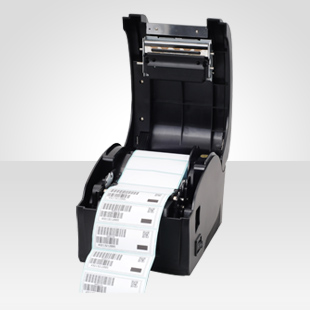
Printing labels: Xprinter XP-235B, XP-360B, XP-365B, XP-370B, Vretti 420B with drivers for Linux
This post covers installing drivers on a Linux platform for the following printers:
- Xprinter models XP-235B, XP-360B, XP-365B, XP-370B
- Vretti models 420B
- ... and possibly more models. In that case, please leave a comment.
The Xprinter XP-360B, used since many years, has proven to be a valuable addition for the office, it is able to spit out labels at an insane speed. But for incidental labels it works fine too.
All variants mentioned here are probably based on more or less the same clockwork. Getting it running in Xubuntu (Ubuntu Linux plus XFCE) was a real challenge without known drivers. This page is aiming to help and should give enough clues for similar Linux environments.
Installing
Web rot, old post from Gempur left without further clues. It was a PITA to get it working years ago... But, I tend to save a lot, drivers gone, drivers back. You need this:
https://vanderworp.org/notes/wp-content/uploads/2019/08/Linux64_v0.2.06.zip
dmesg, not very helpful:
[ 6480.079317] usb 3-1: new full-speed USB device number 3 using ohci-pci [ 6480.274571] usb 3-1: New USB device found, idVendor=1fc9, idProduct=2016, bcdDevice= 1.00 [ 6480.274575] usb 3-1: New USB device strings: Mfr=0, Product=0, SerialNumber=0 [ 6480.280677] usblp 3-1:1.0: usblp0: USB Bidirectional printer dev 3 if 0 alt 0 proto 2 vid 0x1FC9 pid 0x2016
The ziparchive, from 2013(!), contains an outdated pdf, currently running Xubuntu 20.04, or similar, it needs some clarification:
- Extract the zip in "Downloads"
- Terminal > sudo su
- cd /home/username/Downloads/Linux64_v0.2.06
- tar -xzvf tscdriver-0.2.06-x86_64.tar.gz
- move all to an appropriate location, I did put dir tscdriver-0.2.06 in ~/
- cd /home/username/tscdriver-0.2.06/
- ./install-driver
start <TSC Printer Driver (x86_64)> install...... start copy files...... restart spooler - CUPS [ ok ] Restarting cups (via systemctl): cups.service. install driver completed
- Now go to Whisker > settings > printers and add a new printer.
- Select "Xprinter XP-360B" (or different) > Forward > WAIT > Provide ppd > Browse to /home/username/tscdriver-0.2.06/ppd and select driver TDP-245Plus.ppd.
- That's it.
Printing labels
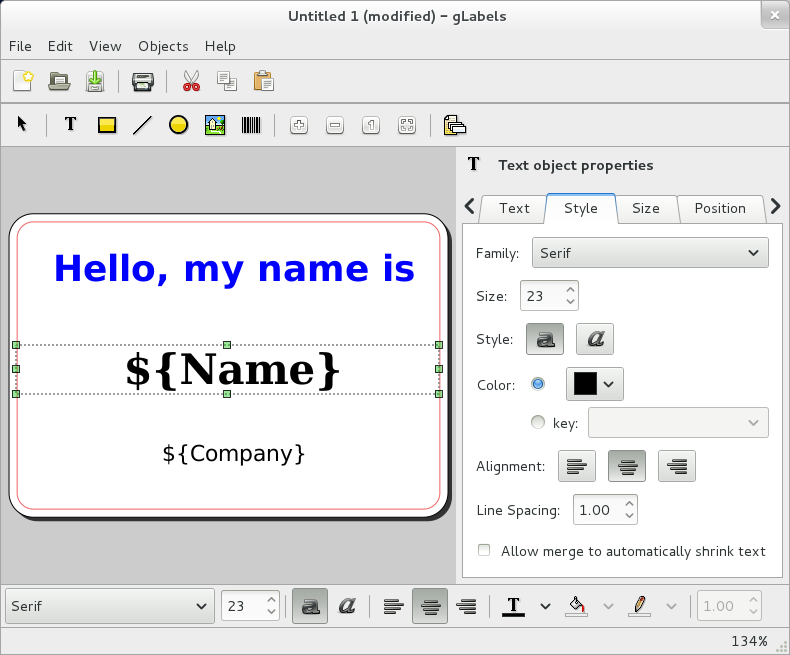
But how do we print labels? A good start is:
For that one time label or a large merging, make a template for your label size and go testing, it works well!